Personal display and notifications
Your personal settings control how dates, times, and durations look for you, and which Time-it notifications you receive. They apply only to you. Click the gear icon in the Time-it top bar. Administration opens on Personal settings. More Administration screens are in the Administration user guide.
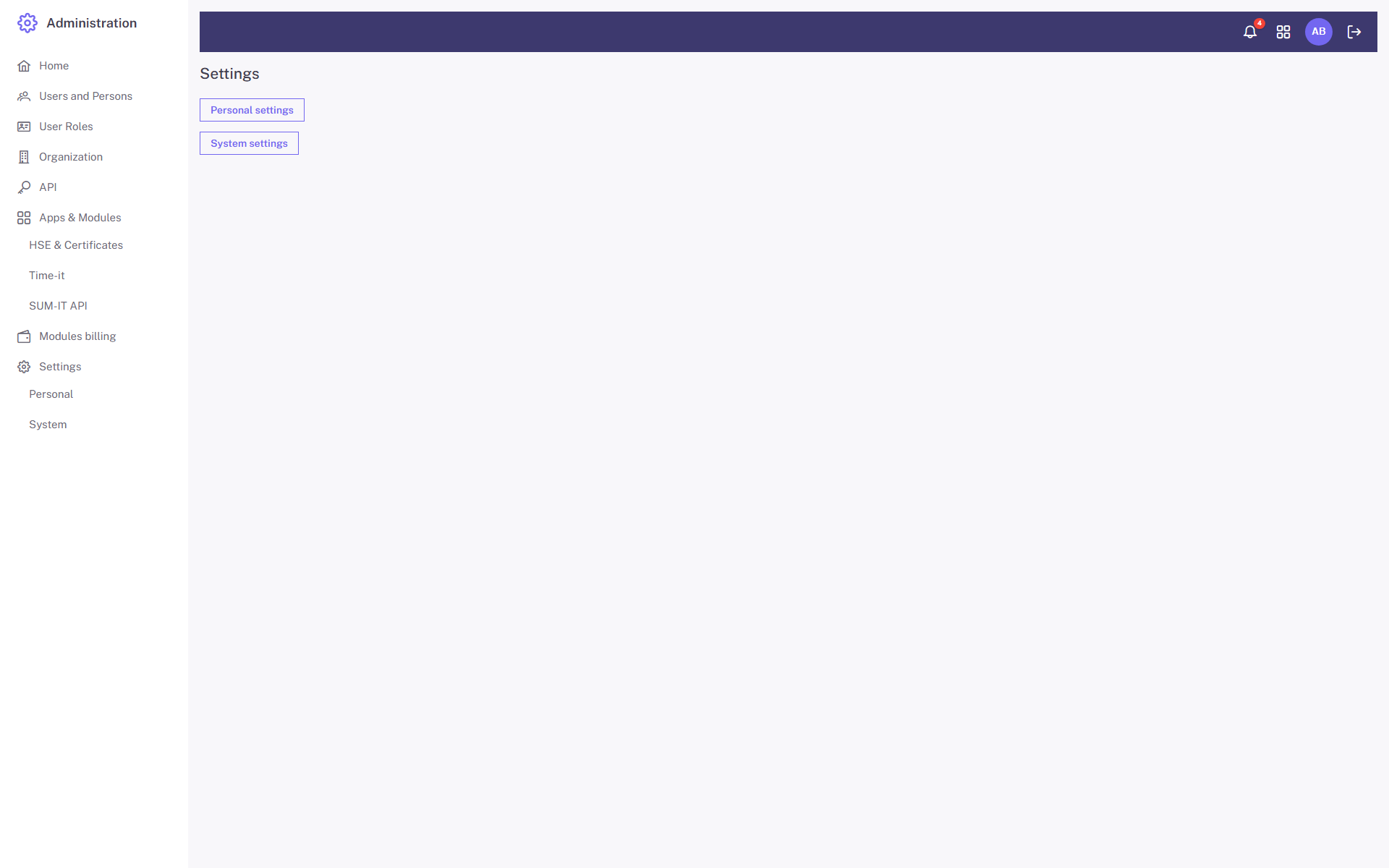
Display and formats
Under Time-it, open Display & formats to choose:
- Date format
- Time format
- Duration format
These change how Time-it shows dates and hours on timesheets, approvals, and reports for your account.
Notifications
Under Time-it, open Notifications to choose how Time-it tells you about changes:
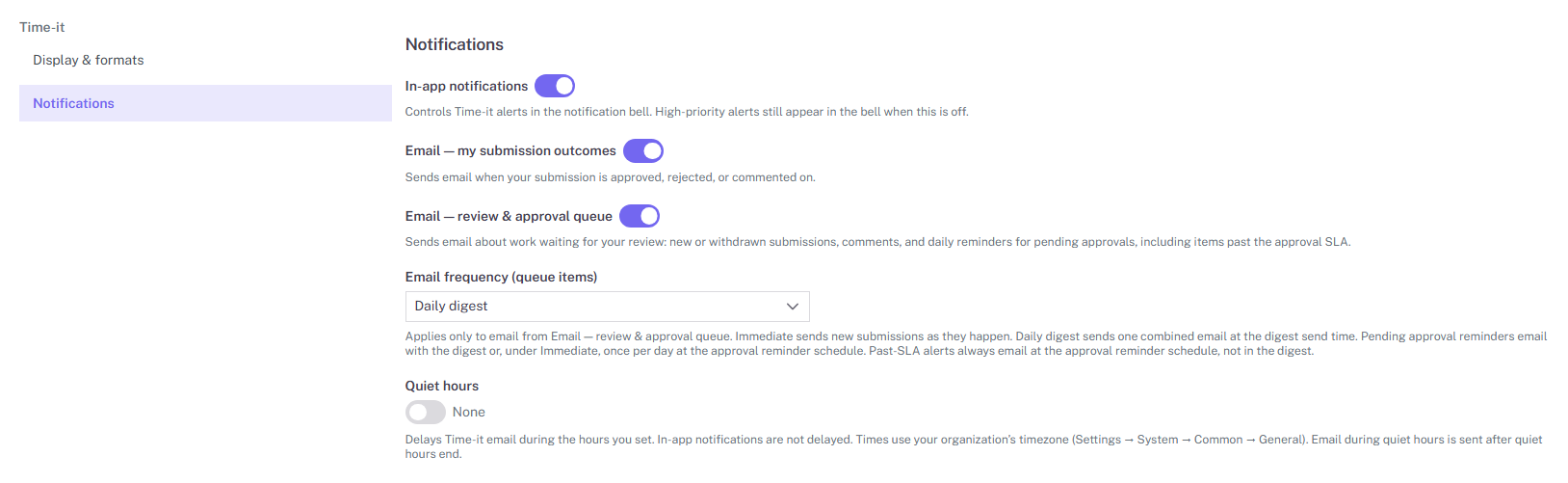
- In-app notifications — messages under the bell icon in the top bar. When this is off, two high-priority Time-it alerts still appear under the bell: when your submission is rejected, and (for approvers) when approvals have waited past the SLA.
- Email — my submission outcomes — email when your submission is approved, rejected, or commented on.
- Email — review & approval queue — for reviewers and approvers. You get an email when someone submits or unsubmits a period, when someone comments, and a daily reminder about periods still waiting for you, including late ones.
- Email frequency (queue items) — get approval emails one by one (Immediate) or as one summary email a day (Daily digest). Reminders about late approvals always come as a separate email.
- Quiet hours — choose hours when you do not want Time-it email, for example at night. Email that arrives in those hours is sent when they end. Messages under the bell still appear straight away. The hours use your organization's timezone.
Organization settings are separate
Approval period, reminders, SLA, and organization timezone are organization-wide. They sit under Settings → System, not under personal preferences. See the other pages in this section.