Open Time-it
You open Time-it from SUM-IT, or by going to the Time-it web address your organization uses. After you sign in, Time-it usually takes you to Timesheet.
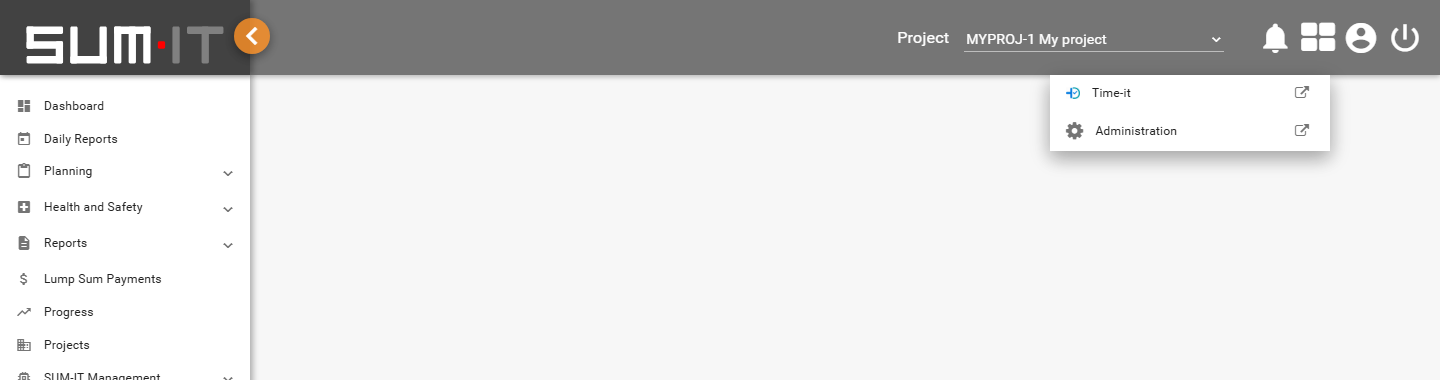
From SUM-IT
Sign in to SUM-IT as usual. In the top bar, click the apps icon (four small squares) and choose Time-it.
You can open it in the same tab, or click the small arrow icon at the right of Time-it to open it in a new tab, so SUM-IT stays open. You are already signed in, so you do not need to enter your password again.
Direct Time-it address
Your organization may also give you a direct web address for Time-it. Open it in your browser. If you are not signed in yet, you see the sign-in page first, and then Time-it opens.
After you open Time-it
Usually you land on Timesheet. If you do not see it, Time-it may not be turned on for your organization yet, or your role may not include Time-it (see Who sees what). From the left menu you can move to List View, Approvals, Projects, User Groups, or Reports when those items are shown for you.
From Time-it you can also:
- Click the apps icon (four small squares) to go back to SUM-IT, or to Administration if you are allowed to open it.
- Click the gear icon to open Settings in Administration, if you have access to it.