Log Time
Log Time is the dialog you use to record hours against a project and task. Edit Time is the same form when you change an existing entry. You open it from Timesheet or List View. What you save here becomes the record your organization can later approve and report on.
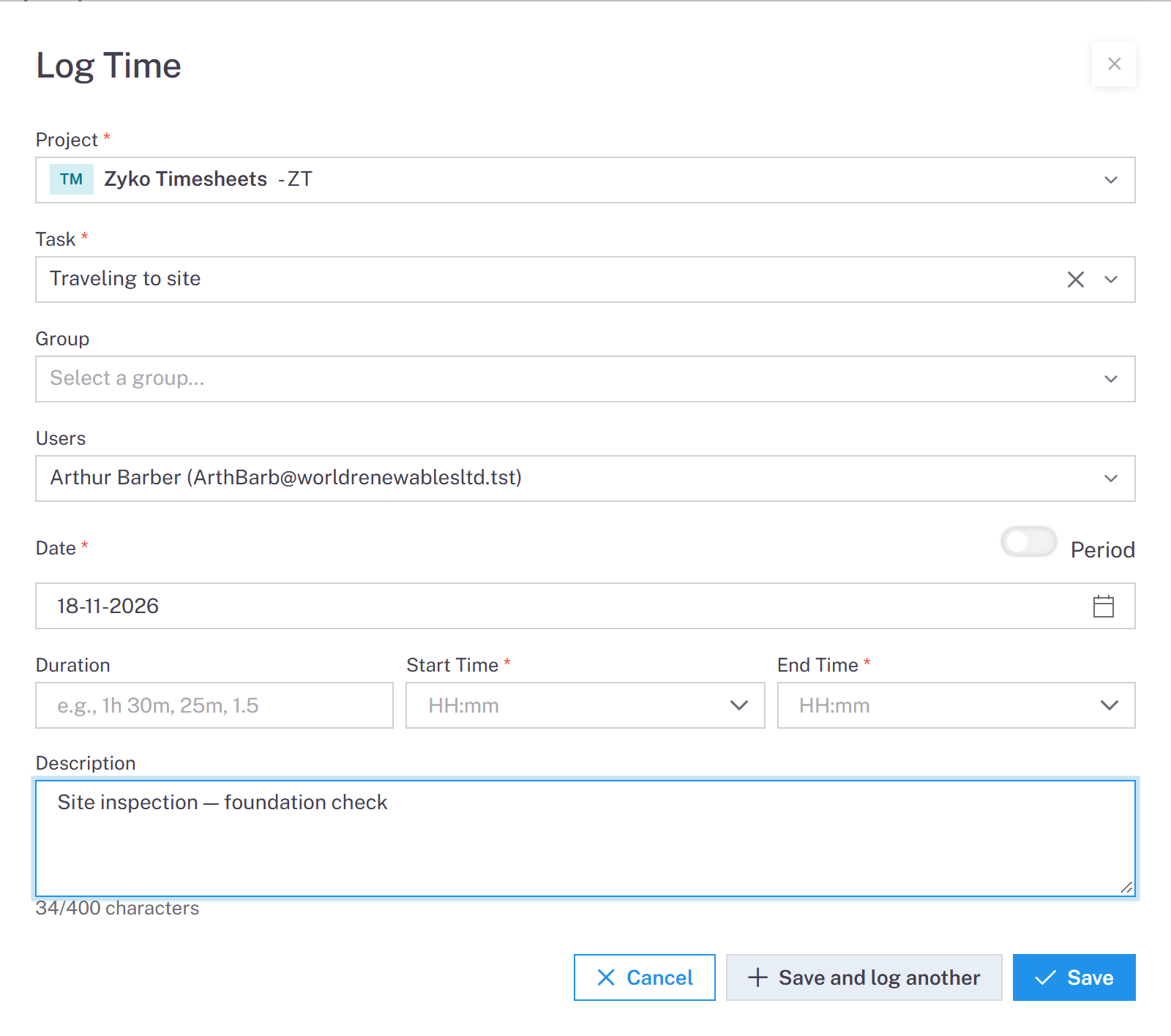
What you enter
You always choose a Project and a Task, and you set when the work happened. Tasks follow the project you picked.
Depending on the task and your organization's setup, you may also see:
- Group, when you log time for a team: choosing a group limits Users to that group's members
- Users, when you are allowed to log time for other people (not only yourself)
- Description, for a short note about the work (up to 400 characters)
- Start Time and End Time (required). Duration is worked out from them, or you can type a duration instead.
- Period: turn on this switch next to Date, then pick a start date and an end date in the calendar. The same hours are logged on every day in that range
You only see projects you are allowed to log time on. For a Time-it project, you must be a member of that project, unless the project is open to everyone (Open project).
You can save one entry, or use Save and log another to keep the dialog open for the next row. After you save, the hours appear on Timesheet and List View. They are not sent for approval until you submit the period on List View.
Actions
- Click Log Time on Timesheet or List View to open the dialog for a new entry.
- Choose Project and Task, fill the people and time fields, then save.
- To change an entry, click the pencil icon on its row in List View. This opens Edit Time. To delete an entry, click the bin icon. You can only do this while the period is not Approved. On Timesheet, click an hour value to open that day's entries for the project and task, then open the row you need to change.
If the date falls in a period that is already Approved, Time-it will not let you create or change that time. The message asks you to contact the approver and request that they reject the existing approval first.
SUM-IT projects
With the SUM-IT integration you can also pick SUM-IT projects in Log Time. They show an SM badge in the project list (TM marks Time-it projects). When you select a SUM-IT project, extra fields appear: Unit (when the task is unit-related), Activity Type (Work schedule, Extra work, or Stand by — shown as W, E, and S on List View and in Reports), and Role on site when SUM-IT needs it for that person and project. Hours you log stay tied to that SUM-IT project and can be used in SUM-IT daily reports. You must be assigned to the project in SUM-IT to book it, and you cannot log time on closed or pending SUM-IT projects.
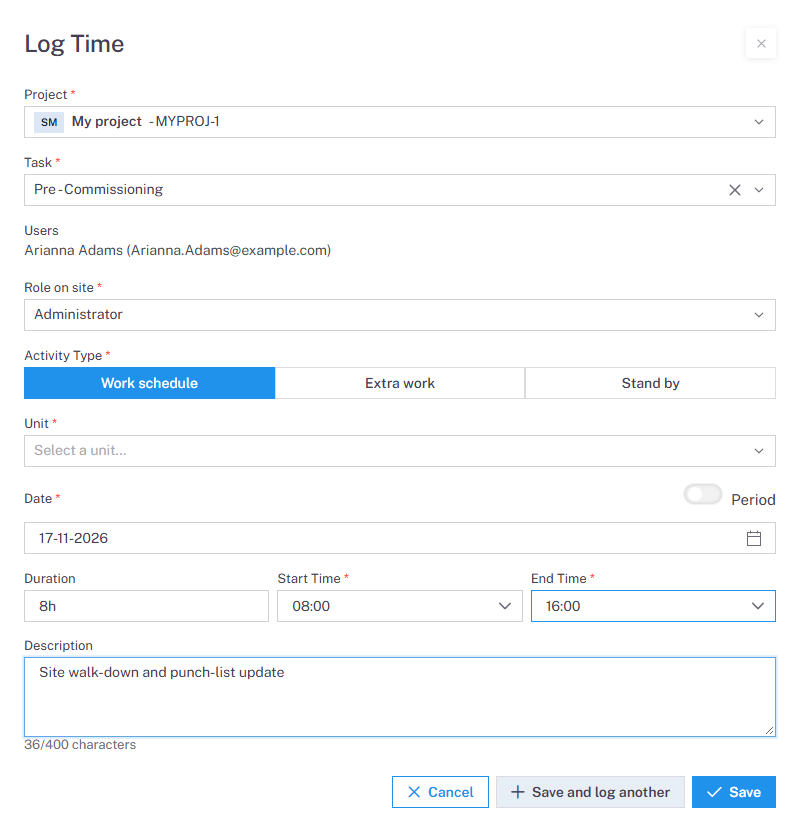
Role on site
Role on site appears only for SUM-IT (SM) projects in Log Time — not for Time-it (TM) projects. It is the person's on-site job on that project, from the same person roles set under Users and Persons in Project in SUM-IT (including Default role on site). The dropdown lists that project's person roles. Time-it shows the field when the project allows changing a person's role in an activity, or when the person has no default role yet; otherwise it uses the default without showing the field.
