What Time-it is for
Time-it is where you record the hours you worked, send them to your manager or approver for approval, and turn them into reports. You book time against projects and tasks. Your organization can then review, approve, and export that record.
Hours are approved in blocks of time called periods. Depending on your organization, a period is one day, one week, or one month. You submit a whole period at once, and an approver accepts it or sends it back.
Time-it is a separate app from SUM-IT. You open it from SUM-IT with the apps icon (four small squares) in the top bar, or by going straight to the Time-it web address your organization uses.
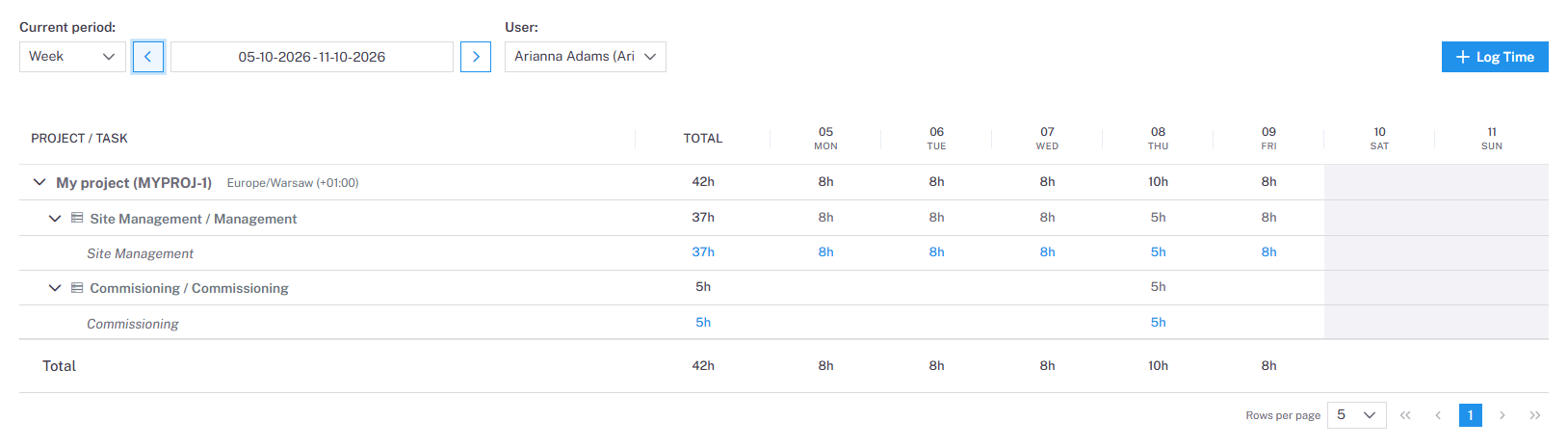
This is the Timesheet, usually the first screen you see after you open Time-it. It shows one week or one month at a time, depending on what you select, with the dates at the top and Log Time on the right. Each project and task has its own row, with the hours for each day and a total for the week. Weekend columns are shaded grey.
What you can do in Time-it
Depending on your role, you may see some or all of these menus:
- Timesheet shows your hours in a grid, by project, task, and day.
- List View shows the same hours as a simple list. This is also where you submit a period for approval.
- Approvals lists the periods that are waiting for a decision.
- Projects is where you set up the projects people log time against. They are separate from projects in SUM-IT.
- User Groups is where you set up teams, which decide who can see whose time and who approves it.
- Reports lets you browse the history of registered time, filter it by date range, person, or project, and export it to Excel.
The gear icon opens Settings in Administration. There you choose how dates and times look for you. If you have permission, you can also set how your organization runs approval periods and reminders. The full Administration user guide is at Administration.
Icons used in this guide
| Icon | Name in the UI | What it does |
|---|---|---|
| Switch apps | Opens the app launcher (SUM-IT, Time-it, Administration). | |
| Open in new tab | Opens the chosen app in a new browser tab. | |
| Review | Opens a submitted period to check hours and history. | |
| Approve | Accepts a submitted period. | |
| Reject | Sends a period back for correction. | |
| Edit | Opens an entry or project for editing. | |
| Delete | Removes an entry, project, group, or member. | |
| Show history / View approval history | Shows status changes and comments for a period. | |
| Dashboard | Opens a Time-it project dashboard. | |
| Open (magnifier) | Opens a user group from the list. | |
| Settings | Opens Administration settings from Time-it. | |
| Notifications | Opens in-app notifications in the top bar. | |
| Info | Shows the description of a permission. |
How this fits with SUM-IT
If your organization also uses SUM-IT, you can log hours on SUM-IT projects too, right here in Time-it. Those hours can then be used in SUM-IT daily reports. The SUM-IT user guide explains the Time-it tab on a daily report. This Time-it guide covers logging, submitting, approving, and reporting inside Time-it itself.
Your organization turns Time-it on once in Administration under Apps & Modules → Time-it. Until then, nobody in your organization can use it. See Open Time-it.
Where to go next
- Open Time-it explains how to reach the app.
- Who sees what explains which menus and whose time you can see.
- Timesheet is the screen most people see first after signing in.
- Setting Time-it up for your organization? Start with Organization approval period, then Projects and User Groups.