List View
List View shows the same hours as Timesheet, but as a list of rows for the period you are looking at. This is also where you Submit a period for approval, or Unsubmit it while it is still waiting.
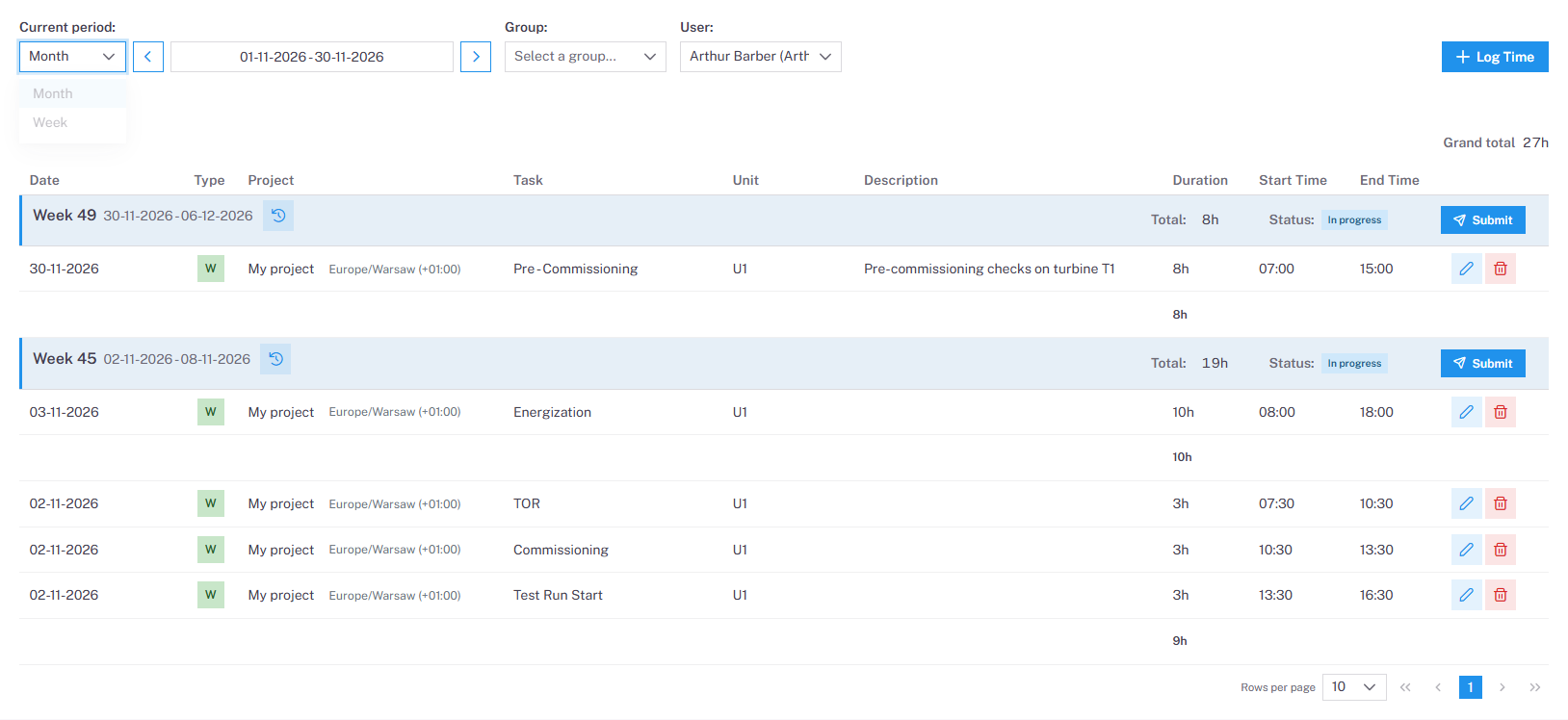
Period sections
Entries are sorted into sections, one for each approval period: a day, a week, or a month, as your organization chose. Each section header shows the period (for example Week 45 and its dates), the total hours, and the status (In progress, Pending, Approved, or Rejected).
The Current period filter only chooses which dates you see. In the screenshot, Month is selected, but the sections are still weeks because the organization approves time weekly.
Click the history icon (a clock with an arrow) next to the period name to see its status changes and comments. Filters work like on Timesheet (Current period, Group, User), so you can narrow by person or group when those people are visible to you.
The letter in the Type column is the activity type: W for Work schedule, E for Extra work, S for Stand by.
Submit and unsubmit
You see Submit or Unsubmit on the section header of your own periods:
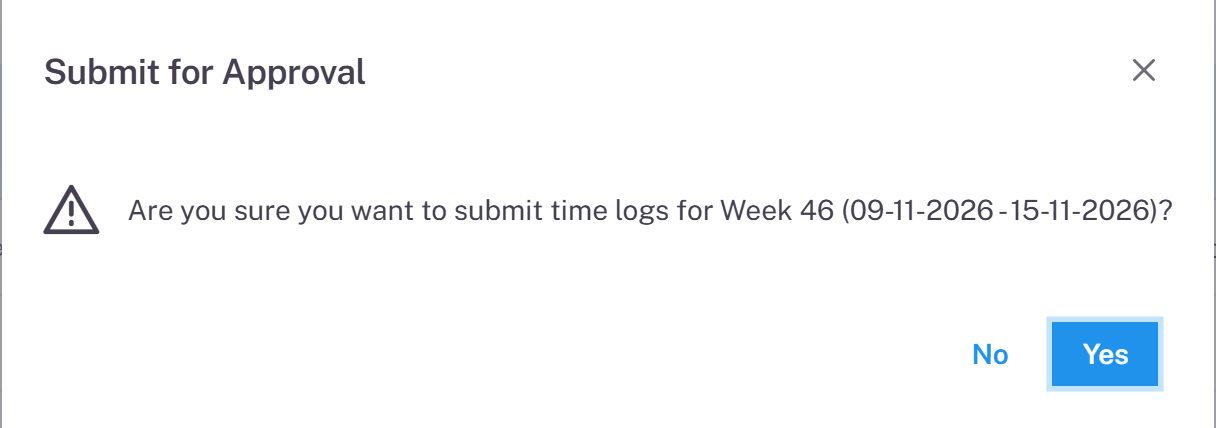
- Submit opens Submit for Approval. After you confirm, the status becomes Pending.
- Unsubmit opens Unsubmit Approval. After you confirm, a Pending period returns to In progress so you can keep editing.
To submit, you need the Timesheet Edit permission. You can only unsubmit your own periods, and only while they are Pending. Approvers act on those submissions in Approvals.
Actions
- Click Submit on a period that is In progress or Rejected to send it for approval. If it was rejected, fix the hours first.
- Click Unsubmit on a Pending period when you need to change hours before an approver decides.
- Click the pencil icon on a row to change that entry, or the bin icon to delete it.
- Click Log Time to add a new entry, the same way as on Timesheet.
List View is for submitting your period. Approvers open Approvals to approve or reject. See Approvals.